Automatic Firmware Upgrade
You will be notified if an update is available upon opening the INNOVV Smartphone App
N1 Pro
N1 Pro Firmware Version:
N1Pro-DET-V2 20240716
Changelog:
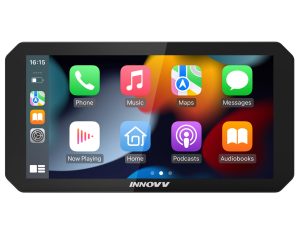
1. Fixed the issue of no sound when connecting to Android AUTO map.
2. Fixed the issue of time correction error after connecting to Apple CARPLAY.
Manual
Upgrade instructions
Upgrade firmware steps:
1. Copy N1Pro_A_yfmotor-spinor-20240716-1440×720-n5-SUPER-release-5867cb5958888d136c5a77af9c9c9a1b.img to the root directory of the TF card (less than 32G).
2. When the device is turned off, insert the TF card. The display will prompt you to update the program. Please select Update. The device will automatically enter the update interface. Please wait patiently for the upgrade progress bar to complete. After the upgrade is completed, the device will shut down and restart (power cannot be cut off during the period).
3. After the device is turned on normally, completely disconnect the power supply of the device, reset the hardware, and then reconnect the power supply. The upgrade is complete.
Note: TF formatting requirements: FAT32. Power cannot be cut off during the upgrade.
K7 Dashcam
Manual
Upgrade instructions
Upgrade firmware steps:
1. Copy the firmware (IN-K7-1.bin) to the root of theTFcard. (Please use 8 to 32GB TF cards and the TF cards should be formatted into FAT32 in advance.)
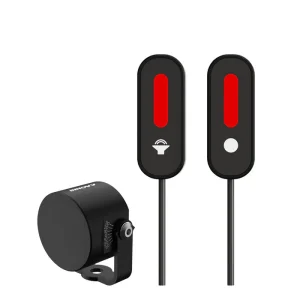
2. Insert the TF card into the camera and turn it on, when the remote control blue light and green light blinking alternately, please wait until the lights are off.
*Please do not power off and operate the K7 while it is updating. After the successful upgrade, the K7 will automatically boot up and the red light will solid on. The firmware will be deleted once updating is finished.
K6 Dashcam
Firmware
IK6.20231107.V1.0.01
Changelog:
1. Support for 28 frames video selection.
2. Adjust gravity trigger sensitivity.
Upgrade instructions
1. Copy the firmware (INNOVV K6.bin) to the root of TF card.*8GB and 32GB TF cards should be formatted into FAT32 in advance.
2. Insert the TF card in the DVR then turn on the camera by long pressing the button, the red light will flash at low light, stop pressing the button and wait for a few moments till the updating finishes, the K6 will automatically turn on after the updating, and the firmware in the card will be deleted as well.
(*Important: the power should not be cut off during this step)
K5 Dashcam
Upgrade instructions
1.Click the above link to download the latest firmware named K5.bin to your computer.
2.Copy the K5.bin file to an SD card. The file name must be the original name and other names could not work, such asK5(1).bin or K5(2).bin.
3. Insert the Micro SD card into your INNOVV DVR.
4. Power on your INNOVV motorcycle camera system and the firmware will be automatically updated with the green lightflashing erratically.Once update is successful the blue light will be flashing on a regular basis appx once a second. If for any reason the update was not successful, please repeat the update.
K3 Dashcam
Upgrade instructions
1. Click the above link to download the latest firmware named K3.bin to your computer.
2. Copy the K3.bin file to an SD card which shall be in FAT32 format. The file name must be the original name and other names could not work, such as K3(1).bin or K3(2).bin.
3. Insert the Micro SD card into your INNOVV DVR.
4. Power on your INNOVV camera system and the firmware will be automatically updated with the green light flashingerratically.
Once update is successful the blue light will be flashing on a regular basis appx once a second. If for any reason the update was not successful, please repeat the update.
H5 Helmet Cam
Upgrade instructions
1. Download the firmware(INNOVV H5.BRN ) and copy it to the root directory of the TF card.
2. Insert the TF card into the camera and turn it on, you can see the red light and green light blinking alternately.
Please wait for about 100 seconds, the update is completed when the power and the lights go off automatically.
( Caution: Please make sure that the battery is sufficient before inserting the TF card.The power can not be cut off when the red light and green light flashing alternately; The firmware will be deleted once updating is finished).